

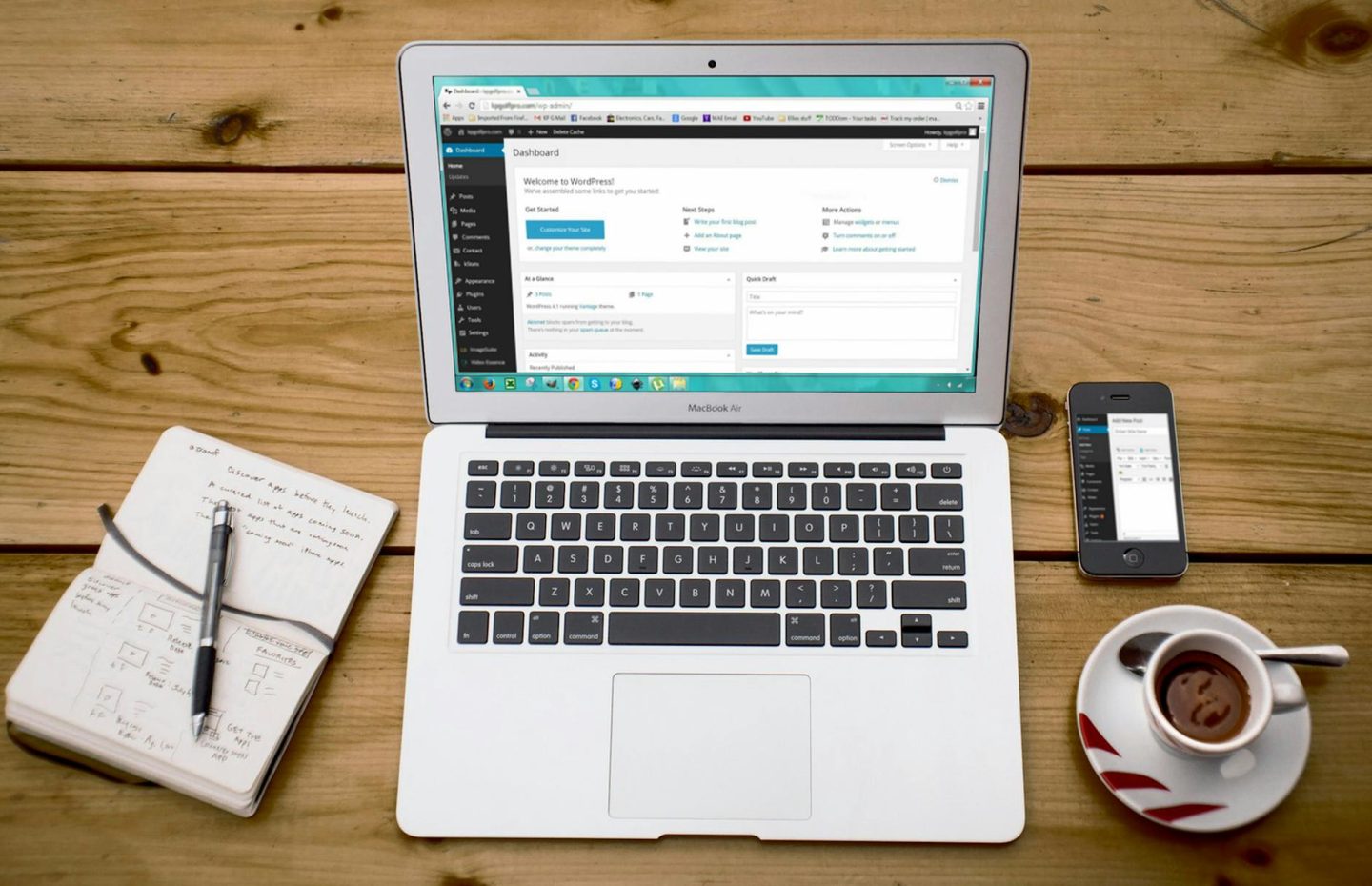
WordPress powers over 40% of every website on the internet. That’s not a typo. Nearly half the web runs on this one platform, from personal blogs and portfolio sites to massive online shops and news outlets.
But here’s the thing most beginners don’t realise until it’s too late: your hosting provider matters just as much as WordPress itself. Pick a slow, unreliable host, and your beautiful new site will crawl, crash, and drive visitors away before they even read a word. Pick a solid one, and everything just works. Pages load fast, your site stays online, and you can focus on what actually matters: building something great.
This guide walks you through absolutely everything you need to know to get your first WordPress website live on the internet. No technical background required. No jargon without explanation. Just a clear, step-by-step path from “I have no idea what I’m doing” to “my website is live and I’m rather proud of it.”
What Is WordPress (And Why Should You Use It)?
WordPress is a free, open-source content management system (CMS). In plain English, it’s software that lets you build and manage a website without needing to write code.
There’s an important distinction to understand straight away: WordPress.com and WordPress.org are not the same thing.
- WordPress.com is a hosted platform where you sign up for an account and build a site within their system. It’s convenient but limited. You can’t install custom plugins, you’re restricted on themes, and you don’t truly own your site.
- WordPress.org is the self-hosted version. You download the software (for free), install it on your own hosting account, and have complete control over everything. This is what most people mean when they say “WordPress,” and it’s what this guide covers.
Why choose WordPress? Because it gives you:
- Complete control over your website’s design, features, and content
- Thousands of free themes to change how your site looks
- Over 60,000 plugins to add any feature you can imagine
- A massive community so help is always available when you need it
- SEO-friendly structure that search engines love
Whether you’re building a blog, a business website, an online shop, or a portfolio, WordPress can handle it. And with the right hosting underneath it, the whole experience is smooth and straightforward. If you want to see how speed fits into the picture, our guide to WordPress speed optimisation covers that side of things in detail.
What Is Web Hosting? A Plain English Explanation
Think of your website like a shop. WordPress is the shopfitting: the shelves, the till, the signage. But you still need a building to put it all in. That building is your web hosting.
Web hosting is a service that stores your website’s files on a powerful computer (called a server) that’s connected to the internet 24/7. When someone types your web address into their browser, the hosting server delivers your website to their screen.
Every website on the internet needs hosting. Without it, your site simply doesn’t exist online.
Here’s what good hosting gives you:
- Speed: Your pages load quickly, keeping visitors happy and improving your Google rankings
- Uptime: Your site stays online reliably, not going down every other Tuesday
- Security: Protection against hackers, malware, and other threats
- Support: Real humans who can help when something goes wrong
- Backups: Regular copies of your site so nothing is ever truly lost
Cheap hosting might save you a few quid a month, but the cost of a slow, unreliable website is far higher. Lost visitors, poor search rankings, and the frustration of dealing with constant problems add up quickly. For more on how hosting choice affects UK businesses specifically, have a read of our post on why UK web hosting matters.
Types of Hosting: Which One Do You Need?
Not all hosting is the same. Here are the main types you’ll come across, explained simply:
Shared Hosting
Your website shares a server with other websites. It’s the most affordable option and perfectly suitable for new websites, blogs, and small business sites. Think of it as renting a desk in a shared office. You get everything you need at a fraction of the cost.
WordPress Hosting
This is shared hosting that’s been specifically optimised for WordPress. The server is configured to make WordPress run as fast and smoothly as possible. If you’re building a WordPress site (which you are, since you’re reading this), this is the sweet spot for beginners. Webfort’s WordPress Hosting is built exactly for this purpose, with servers tuned for WordPress performance right out of the box.
VPS Hosting
A Virtual Private Server gives you your own dedicated portion of a server. More power, more control, higher cost. You probably don’t need this yet, but it’s good to know it exists for when your site grows. Webfort’s Managed VPS plans handle the technical management for you, so you get the power without the complexity.
Dedicated Hosting
An entire physical server just for your website. This is for large, high-traffic websites. Unless you’re planning to be the next BBC, you won’t need this for a while.
For beginners, WordPress hosting is the clear winner. It gives you the best balance of performance, simplicity, and value. You get a hosting environment that’s ready for WordPress from day one, without needing to configure anything technical yourself.
How to Choose the Right Hosting Provider
There are hundreds of hosting providers out there, and they all claim to be the best. Here’s what actually matters when you’re choosing one:
Performance and Speed
Your host should use fast servers with SSD storage (not old-fashioned hard drives), and ideally offer caching and CDN integration. Slow hosting means slow pages, and slow pages mean visitors leaving before your content even loads.
Uptime Guarantee
Look for providers that guarantee at least 99.9% uptime. That means your site will be online virtually all the time. Anything less, and you’re looking at noticeable downtime.
UK-Based Servers
If your audience is primarily in the UK, hosting your site on UK servers makes a real difference. Data doesn’t have to travel halfway around the world, so pages load faster for your visitors. This is one of the reasons we’d recommend Webfort, which hosts sites on UK-based infrastructure.
Support Quality
When something goes wrong at 9pm on a Sunday, you want to know that someone real will actually help you. Not a chatbot. Not a knowledge base article from 2019. Look for providers with genuine, knowledgeable support.
Ease of Use
A good host makes things simple. One-click WordPress installation, an intuitive control panel, and clear documentation all matter, especially when you’re just starting out.
Value for Money
The cheapest option is rarely the best. But the most expensive isn’t necessarily better either. Look for transparent pricing with no hidden fees and a feature set that genuinely matches what you need.
Getting Started with Webfort
If you’ve been following along, you’ll have noticed we’ve mentioned Webfort a few times. That’s not by accident. For WordPress beginners in the UK, it genuinely ticks every box.
Here’s what makes Webfort a strong choice for your first WordPress site:
- UK-based hosting with fast, reliable servers
- One-click WordPress installation so you can be up and running in minutes
- Free SSL certificate included with every plan (the padlock icon in the browser bar)
- Automatic daily backups so your content is always protected
- cPanel control panel that’s industry-standard and beginner-friendly
- Real support from real people who know what they’re talking about
- Transparent pricing with no surprise renewal hikes
Getting started is straightforward:
- Choose your plan: Head to Webfort’s WordPress Hosting page and pick the plan that suits your needs. If you’re just starting with one site, the entry-level plan is perfect.
- Register or transfer your domain: You can register a new domain name (like yoursite.co.uk) during checkout, or transfer an existing one.
- Complete your order: Fill in your details and complete the purchase. You’ll receive your login details via email within minutes.
- Log in to cPanel: Use the credentials from your welcome email to access your hosting control panel. This is your command centre for managing your hosting.
Already have a website with another provider? Webfort can help you switch hosting with minimal hassle.
Installing WordPress: Step by Step
With your Webfort hosting account set up, installing WordPress takes just a few clicks. Here’s how:
Method 1: One-Click Installation (Recommended)
- Log in to your cPanel dashboard
- Scroll down to the “Software” section
- Click on Softaculous Apps Installer (or similar auto-installer)
- Find WordPress in the list and click Install
- Fill in the basic details:
- Choose Protocol: Select “https://” (your free SSL certificate handles this)
- Choose Domain: Select your domain name
- Site Name: Enter your website’s name
- Site Description: A brief tagline for your site
- Admin Username: Choose something other than “admin” for security
- Admin Password: Use a strong, unique password
- Admin Email: Your email address
- Click Install and wait about 60 seconds
That’s it. WordPress is now installed and your website is live. You’ll see a link to your new site and your admin dashboard.
Method 2: Manual Installation
If you prefer doing things yourself (or want to understand how it works under the bonnet), you can install WordPress manually:
- Download WordPress from wordpress.org
- Create a MySQL database in cPanel
- Upload the WordPress files via File Manager or FTP
- Visit your domain in a browser and follow the installation wizard
- Enter your database details and create your admin account
For beginners, the one-click method is the way to go. It’s faster, easier, and produces exactly the same result.
Your First Steps Inside WordPress
You’ve installed WordPress. Brilliant. Now what? Here’s what to do first when you log in to your WordPress dashboard (found at yourdomain.co.uk/wp-admin):
1. Choose a Theme
Go to Appearance > Themes > Add New. Browse the free themes or search for something specific. For beginners, themes like Astra, Starter Templates, or Flavor starter themes are excellent choices. They’re fast, flexible, and easy to customise.
2. Set Your Permalinks
Go to Settings > Permalinks and select “Post name”. This gives your pages clean, readable URLs (like yoursite.co.uk/about-us instead of yoursite.co.uk/?p=123). This is better for visitors and for SEO.
3. Create Your Key Pages
Every website needs a few essential pages:
- Home page: Your front door. Make a good first impression.
- About page: Tell visitors who you are and what you do.
- Contact page: Make it easy for people to get in touch.
- Privacy policy: Required by law if you collect any data (and most sites do).
4. Set Up Your Menu
Go to Appearance > Menus. Create a main navigation menu and add your key pages to it. Keep it simple and logical.
5. Configure Your Reading Settings
Go to Settings > Reading. Choose whether your homepage shows your latest posts (blog-style) or a static page (business-style). Most business sites work better with a static homepage.
Essential Plugins Every Beginner Needs
Plugins are like apps for your WordPress site. They add features and functionality without any coding. Here are the ones worth installing straight away:
Security
Wordfence or Sucuri Security: Protects your site from hackers, malware, and brute-force attacks. Non-negotiable.
SEO
Rank Math or Yoast SEO: Helps you optimise your content for search engines. These plugins guide you through writing content that Google will actually find and rank.
Performance
LiteSpeed Cache or WP Super Cache: Speeds up your site by creating static versions of your pages. If your hosting uses LiteSpeed servers (as Webfort does), LiteSpeed Cache is the natural fit.
Backups
UpdraftPlus: Even though Webfort provides daily backups, having your own backup plugin gives you an extra safety net. You can schedule automatic backups to cloud storage like Google Drive or Dropbox.
Contact Forms
WPForms Lite or Contact Form 7: Lets you create contact forms so visitors can get in touch directly from your site.
A word of caution: Don’t go plugin-mad. Every plugin you install adds weight to your site. Install what you need, keep them updated, and remove any you’re not using. For a deeper look at keeping WordPress safe, check out our WordPress security guide.
Keeping Your WordPress Site Secure
WordPress is secure by design, but like any popular platform, it’s a target for bad actors. Good hosting goes a long way towards keeping your site safe (another reason to choose a provider like Webfort that takes security seriously), but there are steps you should take too:
Keep Everything Updated
WordPress, your theme, and your plugins all release regular updates. These often include security patches. Enable automatic updates where possible, or check for updates weekly at minimum.
Use Strong Passwords
Your admin password should be long, unique, and impossible to guess. Use a password manager like Bitwarden or 1Password to generate and store strong passwords.
Limit Login Attempts
Install a plugin like Limit Login Attempts Reloaded to prevent brute-force attacks. This locks out anyone who tries too many wrong passwords.
Enable Two-Factor Authentication
Add an extra layer of security to your login with a plugin like Two Factor Authentication. Even if someone gets your password, they can’t get in without the second factor.
Install an SSL Certificate
If you’re hosting with Webfort, this is already done for you. SSL encrypts the connection between your site and your visitors, and it’s essential for trust and SEO. You’ll see the padlock icon in the browser bar when it’s active.
Regular Backups
We’ve mentioned this already, but it bears repeating. Backups are your insurance policy. If the worst happens, you can restore your site in minutes rather than starting from scratch.
Common Beginner Mistakes (And How to Avoid Them)
After helping thousands of people get started with WordPress, we’ve seen the same mistakes come up time and again. Here’s how to avoid them:
1. Choosing Hosting Based on Price Alone
The cheapest hosting is cheap for a reason. Overcrowded servers, poor support, and slow speeds will cost you far more in lost visitors and frustration than the few pounds you saved. Invest in quality hosting from the start. You’ll thank yourself later.
2. Not Setting Up Backups
It’s easy to think “it won’t happen to me.” Until it does. Set up automatic backups on day one. With Webfort, daily backups are included, but adding your own backup plugin for extra peace of mind takes five minutes.
3. Installing Too Many Plugins
Each plugin adds code to your site. Too many plugins slow things down, create security vulnerabilities, and can cause conflicts. Stick to plugins you genuinely need, and delete any you’ve deactivated.
4. Ignoring Updates
Outdated WordPress core files, themes, and plugins are the number one cause of hacked WordPress sites. Set aside five minutes each week to check for and apply updates.
5. Using “Admin” as Your Username
It’s the first username hackers try. Choose something unique when you install WordPress, and never use “admin,” “administrator,” or your domain name.
6. Forgetting About Mobile
Over 60% of web traffic comes from mobile devices. Make sure your theme is responsive (most modern themes are), and always check how your site looks on a phone. Google also uses mobile-first indexing, so your mobile experience directly affects your search rankings.
7. Not Setting Permalinks Early
Changing your URL structure after you’ve published content creates broken links and hurts your SEO. Set your permalinks to “Post name” before you publish anything.
Wrapping Up
Getting your first WordPress site live doesn’t have to be complicated. With the right hosting provider underneath you, the technical stuff largely takes care of itself, and you can focus on creating content, growing your audience, and building something you’re proud of.
To recap the key steps:
- Choose reliable, WordPress-optimised hosting (we recommend Webfort’s WordPress Hosting)
- Install WordPress with one click
- Pick a theme, set your permalinks, and create your key pages
- Install essential plugins for security, SEO, and performance
- Keep everything updated and backed up
That’s genuinely all there is to it. The hardest part is making the decision to start. Everything after that is just following the steps.
Ready to get going? Check out Webfort’s WordPress Hosting plans and you could have your site live in under an hour.
1 comment
Comments are closed on this post.



[…] down, breaks after an update, or gets compromised. If you are new to how hosting fits together, our WordPress hosting guide covers the basics before you compare […]