
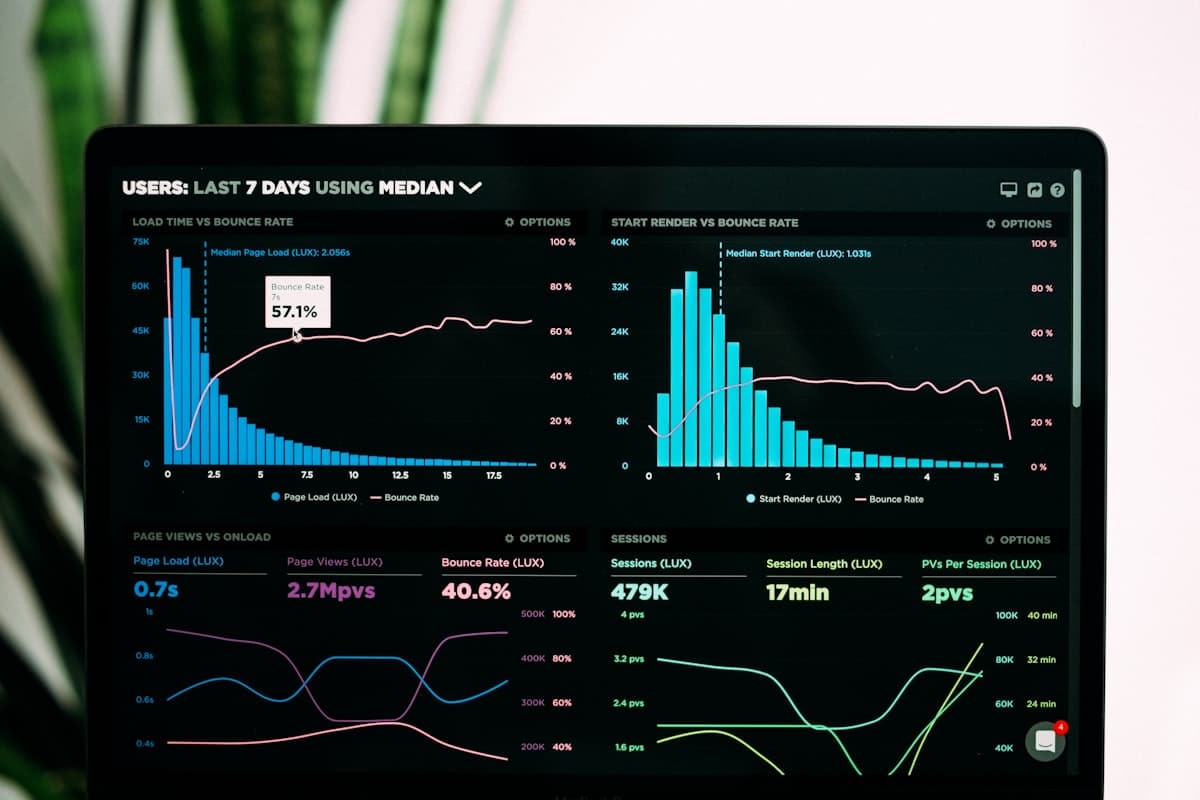
If you’ve ever run your site through Google PageSpeed Insights, you’ll have seen three metrics front and centre: Largest Contentful Paint (LCP), Interaction to Next Paint (INP), and Cumulative Layout Shift (CLS). Together, these are known as Core Web Vitals — and they directly influence how Google ranks your website.
Core Web Vitals aren’t just abstract numbers for developers to obsess over. They measure real things your visitors experience: how fast your page appears, how quickly it responds when they tap or click, and whether the layout jumps around while it loads.
This guide explains each metric in plain English, shows you how to diagnose problems, and walks you through practical fixes you can make today.
What’s in This Guide
- What Are Core Web Vitals?
- How to Check Your Core Web Vitals
- Largest Contentful Paint (LCP)
- Interaction to Next Paint (INP)
- Cumulative Layout Shift (CLS)
- Putting It All Together
- Quick Reference: Targets at a Glance
What Are Core Web Vitals?
Core Web Vitals are a set of three performance metrics that Google uses as part of its ranking algorithm. They were introduced as a ranking signal in 2021 and have been refined since. Each metric focuses on a different aspect of the user experience:
- LCP (Largest Contentful Paint) — measures loading performance. How quickly does the main content of the page become visible?
- INP (Interaction to Next Paint) — measures interactivity. When a user clicks, taps, or presses a key, how quickly does the page respond visually?
- CLS (Cumulative Layout Shift) — measures visual stability. Does the page layout shift unexpectedly while it’s loading?
To pass Core Web Vitals, your site needs to hit “Good” on all three metrics for at least 75% of page loads.
How to Check Your Core Web Vitals
Before you start fixing anything, you need to know where you stand. There are two types of data to look at:
- Field data (real-user data) — collected from actual visitors to your site over 28 days. This is what Google uses for ranking. You’ll find it in Google Search Console under the Core Web Vitals report, or at the top of a PageSpeed Insights report if your site has enough traffic.
- Lab data (simulated data) — generated by tools that load your page in a controlled environment. Useful for diagnosing specific issues. You’ll find this in the lower section of a PageSpeed Insights report, in Lighthouse (built into Chrome DevTools), and in GTmetrix.
Start here: Paste your URL into PageSpeed Insights — you’ll get both field and lab data in one place, along with specific recommendations.
1. Largest Contentful Paint (LCP)
LCP measures how long it takes for the largest visible element on the page to finish rendering. This is usually a hero image, a featured image, or a large block of text. It’s the moment your visitor feels like the page has “loaded.”
The Targets
- Good: 2.5 seconds or less
- Needs Improvement: 2.5–4.0 seconds
- Poor: more than 4.0 seconds
What Causes Poor LCP
LCP is usually slow because of one or more of these issues:
- Large, unoptimised images. A 3MB hero image will take a long time to download, no matter how fast your server is.
- Render-blocking resources. CSS and JavaScript files in the
<head>of your page that must be downloaded and parsed before anything can be displayed. - Slow server response time. If your server takes a long time to respond to the initial request, everything else is delayed.
- Client-side rendering. If your content is built entirely with JavaScript after the page loads (common with some page builders), the browser has to download, parse, and execute the script before it can even start rendering content.
How to Improve LCP
Optimise your LCP image:
- Identify your LCP element using PageSpeed Insights — it will tell you exactly which element is the largest contentful paint. More often than not, it’s an image.
- Resize the image to the actual display size. If it’s shown at 800px wide, don’t upload a 3000px original.
- Use modern formats like WebP or AVIF. These offer dramatically better compression than JPEG or PNG. Plugins like ShortPixel or Imagify can convert images automatically.
- Add
fetchpriority="high"to your LCP image so the browser knows to prioritise downloading it.
Warning: Don’t lazy-load your LCP image. Lazy loading tells the browser to delay loading an image until it’s near the viewport — the exact opposite of what you want for the first thing visitors see. WordPress 6.3+ excludes the first content image from lazy loading by default, but some themes or plugins may override this.
Eliminate render-blocking resources:
- Defer non-critical JavaScript by adding the
deferattribute. Many performance plugins can do this automatically. - Inline critical CSS (the styles needed to render above-the-fold content) and defer the rest. Plugins like Autoptimize or LiteSpeed Cache have options for this.
- Remove unused CSS and JavaScript. Tools like Chrome DevTools’ Coverage tab can show you how much of each file is actually used on a given page.
Improve server response time:
- Enable page caching so your server delivers a pre-built HTML file instead of running PHP and database queries on every request. WP Super Cache, W3 Total Cache, or LiteSpeed Cache all do this well.
- Make sure you’re running a modern version of PHP. PHP 8.2+ is significantly faster than older versions — you can usually switch this from your hosting control panel.
- Use OPcache to cache compiled PHP bytecode, and consider Redis or Memcached for object caching if your hosting plan supports them.
Key takeaway: If your server response time (Time to First Byte) is consistently over 600ms even with caching, your hosting may be the bottleneck. At Webfort, our servers are built for speed with fast NVMe storage, OPcache, and server-level optimisations that give your site a solid foundation.
2. Interaction to Next Paint (INP)
INP measures how responsive your page is to user interactions. Every time a visitor clicks a button, taps a link, or types in a form field, the browser needs to process that interaction and update the display.
INP captures the delay between the interaction and the next visual update — across all interactions during the visit — and reports a value representative of the worst cases.
INP replaced First Input Delay (FID) as a Core Web Vital in March 2024. While FID only measured the delay of the first interaction, INP considers responsiveness throughout the entire page visit, making it a much better reflection of real user experience.
The Targets
- Good: 200 milliseconds or less
- Needs Improvement: 200–500 milliseconds
- Poor: more than 500 milliseconds
What Causes Poor INP
INP problems are almost always caused by JavaScript blocking the browser’s main thread. When the browser is busy executing a long-running script, it can’t respond to user input — the page feels frozen or sluggish.
Common culprits include:
- Heavy third-party scripts. Analytics trackers, ad scripts, chat widgets, social media embeds, and consent management platforms can all add significant JavaScript overhead.
- Bloated page builders. Some visual page builders generate large amounts of JavaScript to handle layout and interactivity on the front end.
- Too many plugins loading scripts. Each plugin that adds front-end JavaScript increases the total work the browser has to do.
- Large DOM size. Pages with thousands of HTML elements take longer for the browser to update after an interaction.
How to Improve INP
Reduce and optimise JavaScript:
- Audit your plugins. Use Query Monitor to see which plugins are loading JavaScript on the front end. Deactivate or replace any that add scripts you don’t need.
- Defer non-essential scripts. Third-party scripts like analytics, chat widgets, and social embeds don’t need to load immediately. Plugins like Flying Scripts or Perfmatters can delay JavaScript execution until the user scrolls, clicks, or moves the mouse.
- Minify JavaScript. Remove unnecessary whitespace and comments to reduce file sizes. Autoptimize or your caching plugin can handle this.
- Avoid excessive inline JavaScript. Some themes and plugins inject large blocks of inline script into every page. Check your page source and look for optimisation options in plugin settings.
Reduce DOM complexity:
- Keep your page structure simple. Avoid deeply nested layouts with dozens of wrapper divs.
- If you use a page builder, keep sections and elements to what’s actually needed. Every element adds to the DOM.
Tip: Google recommends keeping the DOM under 1,400 elements. Check your count in Chrome DevTools by running
document.querySelectorAll('*').lengthin the Console tab.
Break up long tasks:
- If you’re writing custom JavaScript, avoid synchronous operations that block the main thread for more than 50ms. Use
requestAnimationFrameorsetTimeoutto break work into smaller chunks. - For most WordPress sites, reducing the total amount of JavaScript is more practical and effective than refactoring how it runs.
3. Cumulative Layout Shift (CLS)
CLS measures how much the visible content on your page shifts around unexpectedly during loading.
You’ve probably experienced this yourself — you start reading an article, an image loads above and pushes the text down, or you’re about to tap a link and a banner appears, causing you to click the wrong thing. That’s layout shift, and it’s infuriating.
The Targets
- Good: 0.1 or less
- Needs Improvement: 0.1–0.25
- Poor: more than 0.25
What Causes Poor CLS
- Images and videos without dimensions. If the browser doesn’t know how big an image will be before it loads, it initially renders the page without it and then shifts everything when the image appears.
- Ads, embeds, and iframes without reserved space. Third-party content that injects itself into the page after load will push everything around it.
- Web fonts causing a flash of unstyled text (FOUT). When a custom font loads and replaces the fallback font, the different sizing can cause text to reflow and shift surrounding elements.
- Dynamically injected content. Cookie consent banners, newsletter popups, and notification bars that push page content down instead of overlaying it.
How to Improve CLS
Always set image and video dimensions:
- Include
widthandheightattributes on all<img>and<video>elements. This allows the browser to reserve the correct amount of space before the file loads. - WordPress automatically adds width and height attributes to images inserted through the media library, but check that your theme’s CSS isn’t overriding this with something like
height: autowithout a correspondingaspect-ratioproperty. - For responsive images, use CSS
aspect-ratioor a container with percentage-based padding to maintain the correct proportions across screen sizes.
Reserve space for ads and embeds:
- If you use ads, give the ad container a fixed minimum height matching the expected ad size. An empty space is far better than a layout shift when the ad loads.
- For embeds (YouTube, Twitter, etc.), use a placeholder or facade with fixed dimensions. Plugins like WP YouTube Lyte and Lite YouTube Embed replace YouTube embeds with a lightweight preview image until the user clicks play.
Handle web fonts properly:
- Use
font-display: swapin your@font-facedeclarations. This tells the browser to show the fallback font immediately and swap in the custom font when it’s ready. - Better still, use
font-display: optionalif you’re willing to let the browser skip the custom font entirely on slow connections. This eliminates both FOIT and FOUT. - Preload your most important font files using
<link rel="preload" as="font" type="font/woff2" crossorigin>so the browser starts downloading them early. - Self-host your fonts instead of loading them from Google Fonts. This removes the extra DNS lookup and connection overhead. Plugins like OMGF automate this.
Key takeaway: Cookie consent banners and notification bars should overlay the page content (using fixed or sticky positioning), not push it down. Check your consent plugin’s settings — most offer this as an option.
Putting It All Together
Improving Core Web Vitals doesn’t have to be overwhelming. Here’s a practical approach:
- Benchmark first. Run your key pages through PageSpeed Insights and note your LCP, INP, and CLS scores. Check Google Search Console for field data showing which URLs have issues.
- Fix the biggest problems first. PageSpeed Insights tells you exactly which issues are costing you the most. Start there.
- Tackle one metric at a time. Get LCP under control first (it’s usually the most impactful), then address CLS (often the easiest to fix), and finally INP.
- Test after every change. Make one change, measure the result. This way you know what’s working and can catch any regressions early.
- Monitor over time. Core Web Vitals are based on real-user data collected over 28 days. Improvements won’t show up in Google’s reports immediately, but lab data will confirm you’re on the right track.
Quick Reference: Targets at a Glance
| Metric | What It Measures | Good | Poor |
|---|---|---|---|
| LCP | Loading speed | ≤ 2.5s | > 4.0s |
| INP | Responsiveness | ≤ 200ms | > 500ms |
| CLS | Visual stability | ≤ 0.1 | > 0.25 |
Final Thoughts
Core Web Vitals are Google’s way of quantifying what your visitors already feel — whether your site is fast, responsive, and visually stable.
The good news is that most WordPress sites can achieve passing scores with a combination of image optimisation, sensible caching, reducing unnecessary JavaScript, and reserving space for dynamic content.
You don’t need to chase a perfect 100 in PageSpeed Insights. Focus on getting all three metrics into the “Good” range for your real users, and you’ll be ahead of the vast majority of websites.
If you’re a Webfort customer and need a hand diagnosing or fixing your Core Web Vitals, get in touch with our support team. We’re always happy to help you get the best performance out of your site.
[…] will load noticeably faster for someone in Manchester than a site hosted in Texas. Speed matters: Google’s Core Web Vitals directly affect your search rankings, and visitors abandon slow sites within […]